Tech Reborn
How to Speed Up a Slow Laptop in 10 Minutes
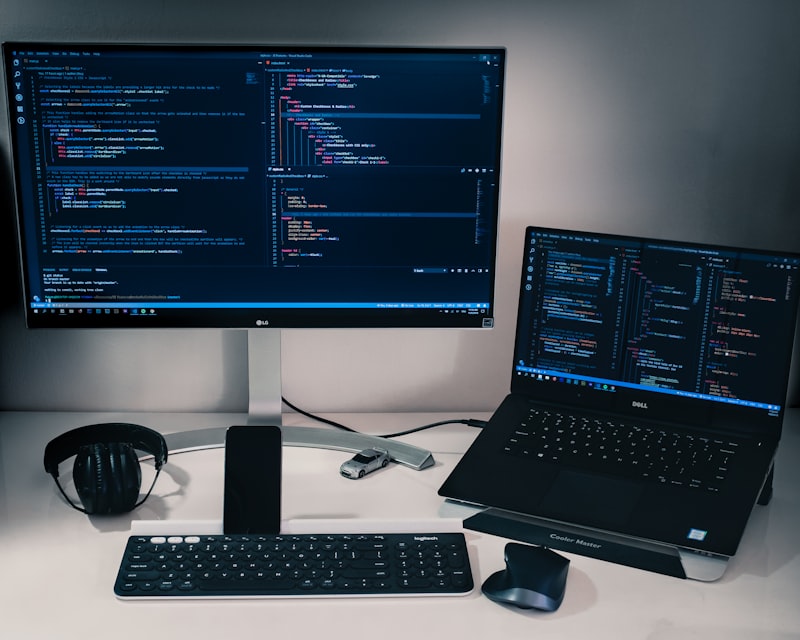
A slow laptop is one of the most frustrating tech problems — because it is usually fixable. Before you spend money on a new machine, work through these steps. Most people find at least one that makes a noticeable difference.
1. Restart Properly
Not sleep, not hibernate — a full restart. Windows and macOS accumulate processes in memory over days of uptime. A restart clears the slate. If you have not restarted in a week, do this first.
2. Check What Is Using Your CPU and RAM
Open Task Manager (Windows: Ctrl+Shift+Esc) or Activity Monitor (Mac). Sort by CPU or Memory. Browser extensions, antivirus scans, and sync services like OneDrive and Dropbox are common offenders.
3. Disable Startup Programs
On Windows: Task Manager → Startup tab. Disable everything you do not need launching at boot. Spotify, Teams, Discord, Zoom, Adobe updaters — these all slow boot time and consume background resources.
4. Check Available Storage
If your drive is more than 85 percent full, your OS will slow down noticeably. Delete large unused files or move them to external storage.
5. Run a Malware Scan
Malware frequently causes slow performance. Run Windows Defender or Malwarebytes (free version) to check. This takes 5 to 10 minutes.
When Software Fixes Are Not Enough
If you have done all of the above and the laptop is still slow, the hardware is the bottleneck. Upgrading from an HDD to an SSD or adding RAM will give you far more performance than any software tweak.