Tech Reborn
How to Safely Wipe a Laptop Before Selling It
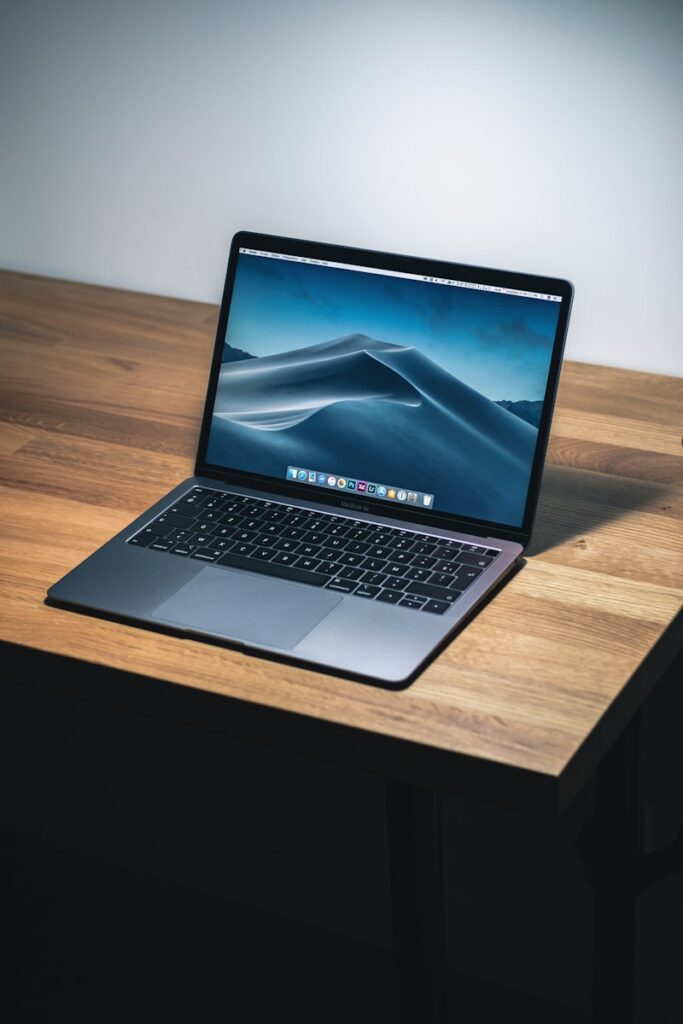
Selling or giving away a laptop without properly wiping it is a genuine privacy risk. The default factory reset on most operating systems does not actually erase your data — it just removes pointers to it, leaving files recoverable with basic tools. Here is how to do it properly.
Windows Laptops
Go to Settings, then System, then Recovery, then Reset this PC. Choose Remove everything. When prompted, select Change settings and enable Delete files from all drives and set Data erasure to On. This process takes 1 to 3 hours but overwrites your data so it is not recoverable with consumer tools.
Remove your Microsoft account first: Go to Settings, then Accounts, then Your info and remove your Microsoft account before resetting. Otherwise the next owner may encounter a lock tied to your account.
Mac Laptops
For Macs with Apple Silicon (M1 or later): Shut down the Mac, hold the power button until you see startup options, go to Options, then Erase Mac. This fully wipes and reinstalls macOS.
For Intel Macs: Sign out of iCloud first. Then restart in Recovery Mode by holding Cmd+R on boot, open Disk Utility, erase the drive, and reinstall macOS.
Sign out of iCloud before anything else: An unsigned iCloud account activates Activation Lock, which can prevent the next owner from setting up the laptop.
What to Do Before You Wipe
- Back up everything you want to keep
- Sign out of all accounts — iCloud, Microsoft, Google, Dropbox
- Deauthorize apps with per-device licensing such as Adobe CC
- Remove saved passwords from your browser
After the Wipe
Boot the laptop and confirm it starts to the setup screen cleanly. For the buyer reassurance, take a short video showing this before handing it over.